Wireless headphones have changed the way we listen to music and take calls. Over 40 percent of users now prefer wireless options for their convenience. The headphone by dre beats stands out for its sound quality and sleek design. Pairing and fixing issues can seem tricky at first. This guide will walk you through every step to make it easy.
You will learn how to connect your device and solve common problems. Whether you are new to wireless tech or just need a refresher this article has you covered. Let us start with the basics and move to advanced tips.
Understanding Your Dre Beats Headphones
Dre Beats headphones come in various models like Solo Pro Studio Pro and Powerbeats. Each model has unique features but shares core functions. Knowing your model helps in pairing and fixing issues later.
The Solo Pro offers active noise cancellation for immersive sound. Studio Pro focuses on balanced audio for professional use. Powerbeats are designed for workouts with secure fit and sweat resistance.
All models support Bluetooth for wireless connections. They also include built in microphones for calls and voice commands. Battery life varies but most last between 15 to 22 hours on a full charge.
Check the user manual for model specific details. This will help you use all features effectively. Understanding these basics sets the stage for smooth pairing and use.
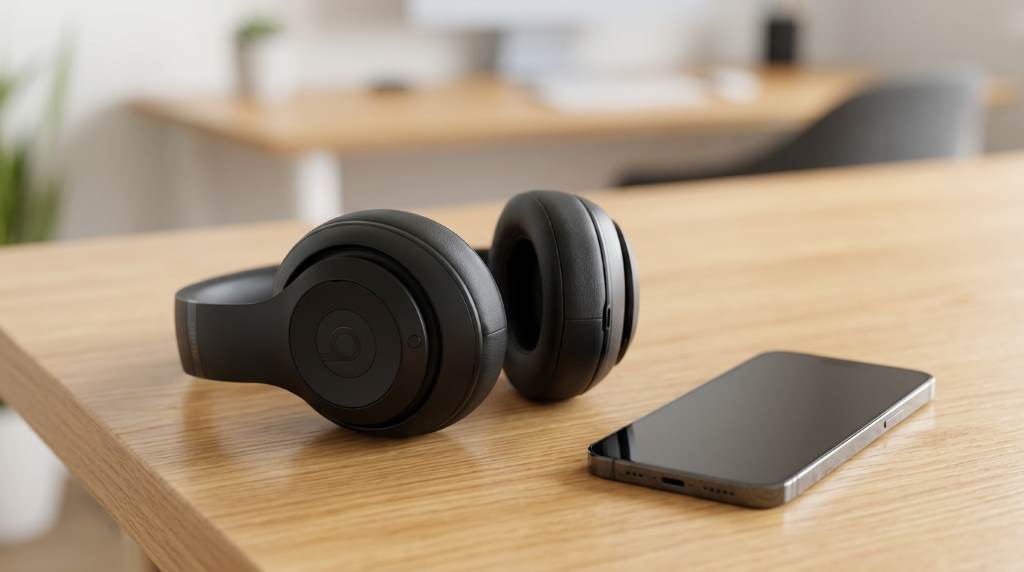
Preparing Your Headphones for Pairing
Before pairing ensure your headphones are charged. A low battery can cause connection failures. Most Dre Beats models show battery status via LED indicators.
Turn off any other Bluetooth devices nearby to avoid interference. This simplifies the pairing process. Make sure your audio source is within range usually up to 30 feet.
Reset your headphones if they have been paired before. This clears old connections and prevents conflicts. The reset process varies by model but often involves holding the power button for 10 seconds.
Gather your audio source whether it is a phone tablet or computer. Ensure its Bluetooth is enabled. These steps prepare your devices for a successful pairing.
Step by Step Pairing Guide
For iOS Devices
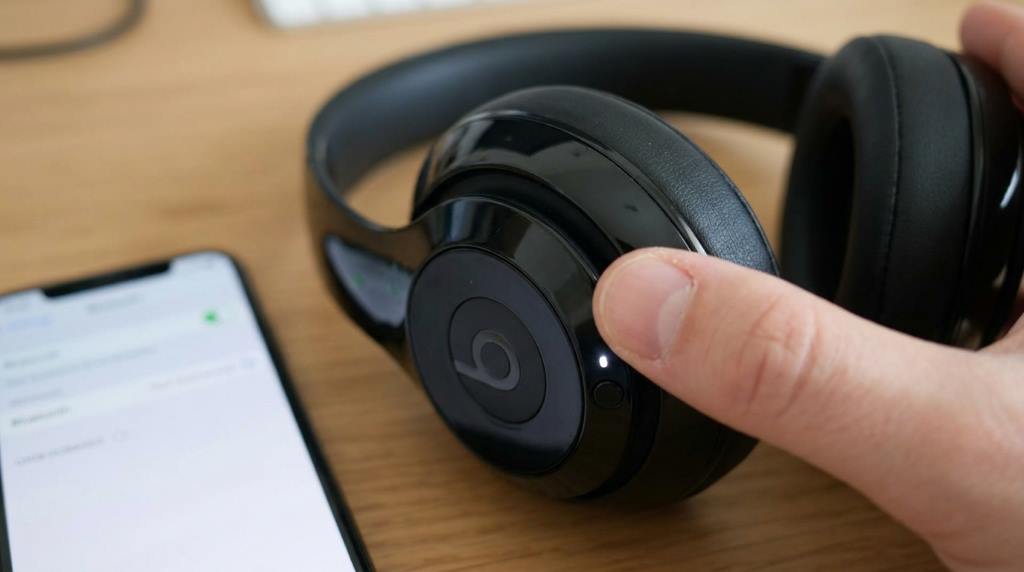
Open the Settings app on your iPhone or iPad. Tap Bluetooth and toggle it on if it is off. Your device will now scan for nearby Bluetooth devices.
Put your Dre Beats headphones in pairing mode. For most models press and hold the power button until the LED flashes. This indicates they are ready to pair.
Your headphones should appear in the list of available devices. Tap their name to connect. Once connected the LED will stop flashing and stay solid.
Test the connection by playing audio. If you hear sound your headphones are successfully paired. If not repeat the process or check your settings.
For Android Devices
Go to Settings and select Connected Devices. Turn on Bluetooth and wait for your device to scan. This may take a few seconds.
Activate pairing mode on your Dre Beats headphones. The LED should start flashing rapidly. This means they are discoverable.
Your headphones will appear in the list of available devices. Tap their name to start the pairing process. A confirmation message will appear once connected.
Play a song or video to verify the connection. If the audio plays through your headphones the pairing is complete. If issues arise try restarting both devices.
For Windows and Mac Computers
On Windows open Settings and go to Devices. Select Bluetooth and other devices then add Bluetooth or other device. Your computer will start scanning.
Put your Dre Beats headphones in pairing mode. The LED indicator should flash. This signals they are ready to connect.
Select your headphones from the list of devices. Click Connect and wait for confirmation. Once paired you can use them for audio output.
For Mac open System Preferences and select Bluetooth. Turn on Bluetooth and put your headphones in pairing mode. Click Connect next to your headphones name.
Common Pairing Issues and Fixes
Sometimes headphones do not appear in the device list. This can happen if they are not in pairing mode. Double check the LED indicator to confirm they are discoverable.
If the connection drops frequently move closer to your audio source. Walls and other obstacles can weaken the Bluetooth signal. Keep a clear line of sight for best results.
Restart both your headphones and audio source if pairing fails. This often resolves temporary glitches. Also ensure your headphones are fully charged.
Forget the device on your audio source and pair again. This can fix persistent connection issues. Go to Bluetooth settings and remove your headphones then retry pairing.
Advanced Troubleshooting Techniques
If your headphones still do not connect try a factory reset. This erases all saved settings and restores default configurations. Refer to your manual for model specific instructions.
Update the firmware on your headphones if available. Manufacturers release updates to fix bugs and improve performance. Use the companion app for your model to check for updates.
Check for interference from other wireless devices. Microwaves and Wi Fi routers can disrupt Bluetooth signals. Turn off other devices to isolate the issue.
Test your headphones with another audio source. If they work with one device but not another the problem may be with the original source. This helps narrow down the cause.
Unique Discussion: Using Dre Beats with Multiple Devices
Many users do not realize Dre Beats headphones can connect to two devices at once. This feature is called multipoint pairing. It lets you switch between a phone and a laptop without reconnecting.
To use multipoint pairing first connect your headphones to one device. Then put them in pairing mode again and connect to a second device. Not all models support this so check your manual.
Multipoint pairing is great for multitasking. You can take a call on your phone while listening to music on your laptop. This saves time and makes your workflow smoother.
If you experience lag or audio cuts with multipoint try disabling it. Some users report better performance with single device connections. Experiment to see what works best for you.
Maintaining Your Dre Beats Headphones
Clean your headphones regularly to keep them in good condition. Use a soft cloth to wipe down the exterior. Avoid harsh chemicals that can damage the finish.
Store your headphones in a cool dry place when not in use. Extreme temperatures and moisture can harm the electronics. Use the provided case for extra protection.
Replace ear cushions if they wear out. This maintains comfort and sound quality. Check for official replacements to ensure compatibility.
Avoid dropping your headphones as this can damage internal components. Handle them with care to extend their lifespan. Regular maintenance keeps them performing like new.
Optimizing Sound Quality
Use the equalizer settings on your audio source to customize sound. Dre Beats headphones deliver powerful bass but you can adjust this to your preference. Experiment with different presets.
Enable active noise cancellation for immersive listening. This feature blocks out background noise for clearer audio. It works best in noisy environments like airplanes or busy streets.
Keep your headphones firmware updated for the best sound experience. Updates often include audio improvements and bug fixes. Check the companion app regularly for new versions.
Position the ear cups properly for optimal sound isolation. A good seal enhances bass response and overall audio quality. Adjust the headband for a comfortable fit.
Battery Care and Management
Charge your headphones fully before first use. This calibrates the battery for accurate level readings. Avoid letting the battery drain completely.
Use the provided charging cable for best results. Third party cables may not charge as efficiently. Also avoid overcharging which can reduce battery lifespan.
Store your headphones with a partial charge if unused for long periods. This prevents battery degradation. Aim for around 50 percent charge for long term storage.
Turn off your headphones when not in use to conserve battery. Some models have auto off features but manual control ensures longer battery life. Monitor battery levels via the companion app.
Safety Tips for Using Dre Beats Headphones
Avoid listening at high volumes for extended periods. This can damage your hearing over time. Follow the 60 60 rule listen at 60 percent volume for no more than 60 minutes at a time.
Be aware of your surroundings when using noise cancelling features. These can block out important sounds like traffic or alarms. Stay alert in public spaces.
Do not use your headphones while driving or cycling. This can distract you and increase the risk of accidents. Safety should always come first.
Keep the volume at a safe level when using your headphones in noisy environments. This prevents the need to increase volume to dangerous levels. Protect your hearing for the long term.
Conclusion
Pairing and fixing issues with your Dre Beats headphones does not have to be complicated. Follow the steps outlined in this guide for a smooth experience. Remember to maintain your headphones for long lasting performance.
Take advantage of advanced features like multipoint pairing for added convenience. Stay updated with firmware and app features to get the most out of your device. Your listening experience will be better for it.
If you still face issues do not hesitate to contact customer support. They can provide model specific advice and solutions. Happy listening and enjoy your Dre Beats headphones to the fullest.
Share this guide with friends who might need help with their headphones. Spread the knowledge and make wireless listening easier for everyone. Start pairing and troubleshooting with confidence today.
FAQ
How do I reset my Dre Beats headphones?
Press and hold the power button for 10 seconds until the LED flashes red and white.
Why won’t my headphones connect to my phone?
Ensure Bluetooth is enabled and your headphones are in pairing mode.
Can I use Dre Beats headphones with a non-Bluetooth device?
No, they require Bluetooth for wireless connection.
How do I check the battery level on my headphones?
Use the companion app or check the LED indicator for battery status.
Are Dre Beats headphones waterproof?
Most models are sweat and water resistant but not fully waterproof.