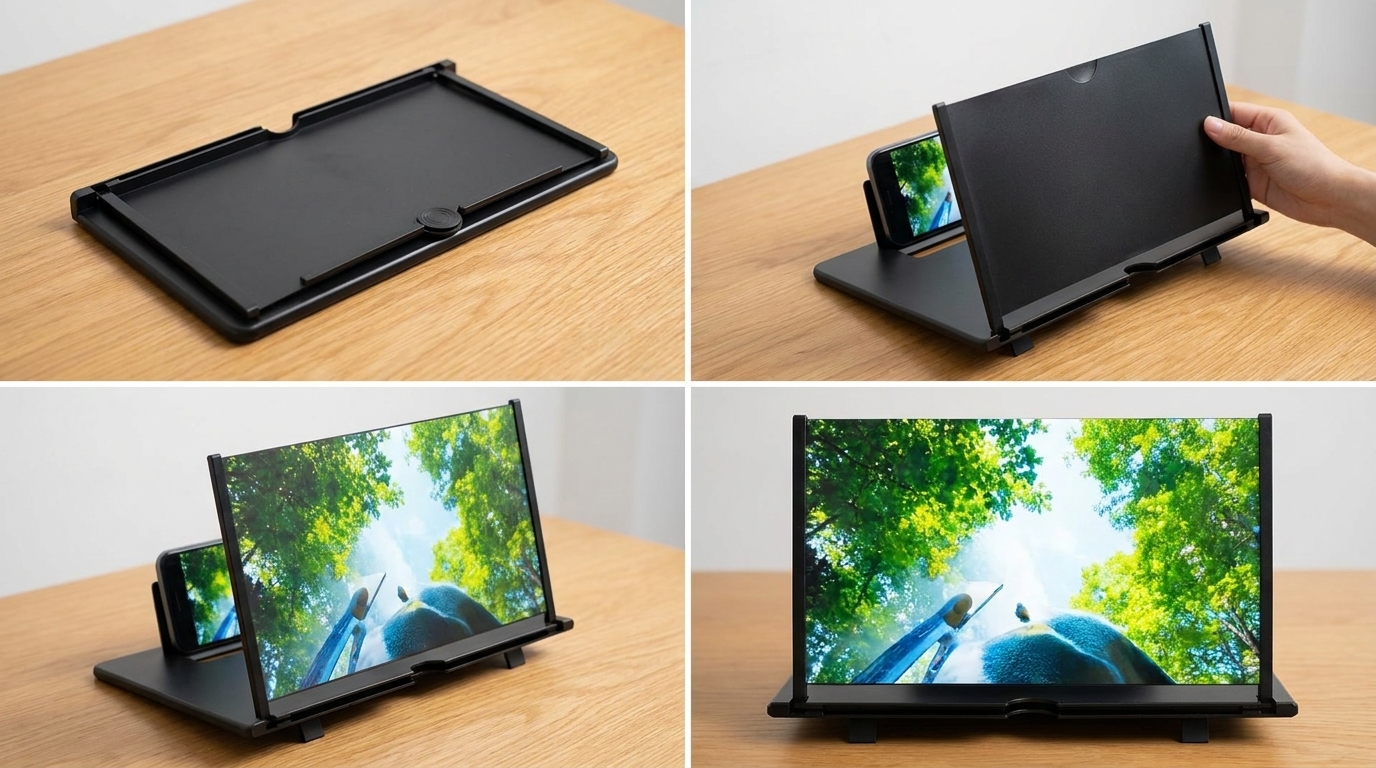
To use a Fanlory 12 Screen Magnifier, place the stand on a flat surface, slide your phone into the rear slot, and adjust the distance until the image looks sharp. Setup takes about a minute. However, image quality depends heavily on your viewing angle and room lighting. Many people set one up, feel disappointed, and assume the product is faulty. In reality, they skipped one small but important step. If you want a closer look at the Fanlory 12 Screen Magnifier before you begin, it helps to understand the basic optics first. This guide covers setup, viewing distance, lighting, and fixes for common problems.
The Fanlory 12 Screen Magnifier projects your phone display onto a curved magnifying panel. Open the stand, slide your phone into the rear slot with the screen facing the lens, then adjust the phone’s position until the image looks sharp. Sit back at a comfortable distance and keep your eyes level with the screen. Bright lighting and a flat, stable surface give the clearest results.
Key Takeaways
- Place the stand on a hard, flat surface, since soft surfaces shift and blur the image.
- Keep the phone screen facing the lens and centered inside the rear slot.
- Adjust the phone’s distance from the lens before adjusting your own seating position.
- Bright, indirect room lighting improves clarity far more than most people expect.
- Sit with your eyes level with the screen to avoid glare and distortion.
- Wipe the lens with a soft microfiber cloth, because fingerprints scatter light.
What the Fanlory 12 Screen Magnifier Actually Does
This device is a passive optical accessory, so it contains no battery, no wiring, and no software. Instead, it uses a curved magnifying panel to enlarge whatever appears on your phone display. Consequently, the image you see is a projection, not a digital copy. That distinction explains most of the quirks people notice during use.
Because the magnifier relies on light rather than electronics, it works with almost any smartphone. It also never needs charging or pairing. On the other hand, it cannot brighten a dim screen or sharpen a low-resolution video. The phone still does that work. The magnifier simply makes the existing image physically larger and easier to view from a distance.
Step-by-Step Setup
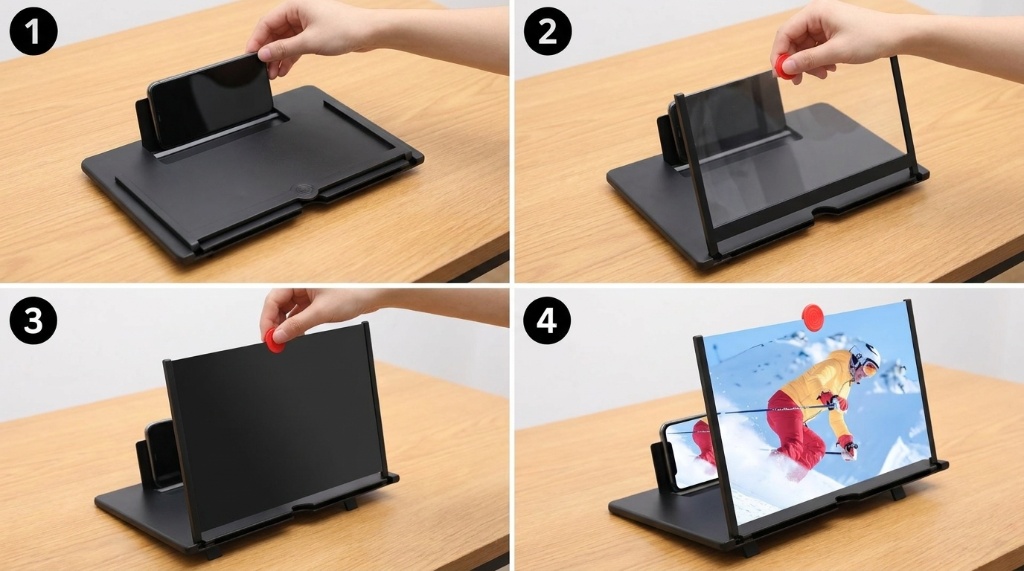
Follow these steps in order, because skipping ahead usually causes blurry results.
- Unfold the stand completely and set it on a hard, level surface such as a table or desk.
- Confirm the curved lens panel faces you and sits at a slight backward tilt.
- Place your phone in the rear slot with the screen facing the lens.
- Center the phone so the display sits directly behind the middle of the lens.
- Turn your phone’s brightness up to roughly 70 percent or higher.
- Sit back and adjust the phone’s position in the slot until the image sharpens.
- Fine-tune your own distance from the screen for comfortable viewing.
After that, avoid moving the stand. Even a small nudge can shift the alignment and soften the picture.
Getting the Viewing Distance Right
Distance is the single biggest factor in image quality, and it works differently than most people assume. Moving the phone closer to the lens enlarges the image but often softens it. Moving the phone farther away shrinks the image but usually sharpens the edges.
Start with the phone near the middle of the slot’s travel range. Then slide it gradually forward or backward in small increments. Pause after each adjustment and look at small text on your screen. When the letters stop looking fuzzy, you have found the right position.
Next, adjust your own seat. Sit far enough back that the entire panel fits comfortably in your field of view. If you sit too close, you will see the lens surface instead of the image. If you sit too far, the picture becomes too small to help.
Lighting Matters More Than You Think
Because the magnifier works by reflecting light, the room around it matters as much as the phone itself. A bright room produces a bright, readable image. A dark room produces a dim, washed-out one, no matter how high you set your phone’s brightness.
Position the stand so ambient light falls on the front of the screen rather than behind it. Overhead lighting usually works well. A lamp placed behind the magnifier does not, because it creates glare on the lens surface.
Also, watch for windows. Strong daylight streaming in from the side can wash out part of the image. Turning the stand slightly, or drawing a curtain, often solves the problem in seconds.
Common Mistakes to Avoid
Most complaints about this type of accessory trace back to a handful of avoidable errors. Here are the ones that appear most often.
- Using the magnifier on a bed or sofa, where the surface tilts and shifts.
- Leaving the phone brightness low and blaming the lens for a dim picture.
- Placing the phone off-center, which distorts one side of the image.
- Sitting at an angle instead of straight in front of the screen.
- Ignoring smudges and dust on the lens surface.
- Expecting sharp results from very small text on a low-resolution display.
Fixing any one of these usually improves the picture noticeably. Fixing all of them transforms the experience.
Troubleshooting Blurry, Dim, or Distorted Images
If the image looks blurry, adjust the phone’s position in the slot first. Move it in small steps and check the text after each change. If that fails, clean the lens with a microfiber cloth, since fingerprints scatter light and soften edges.
If the image looks dim, raise your phone’s brightness and add light to the room. Then check that no object sits between the phone and the lens. A phone case with a thick lip can also block part of the display, so remove it if the edges look cut off.
If the image looks distorted or curved, you are likely viewing from an angle. Move so you sit directly in front of the panel, with your eyes level with its center. Straight-on viewing reduces the curved appearance that these lenses naturally produce.
Care, Storage, and Everyday Use
The lens surface is the most delicate part of the device, so treat it like a pair of glasses. Wipe it with a dry microfiber cloth rather than a paper towel, which can leave fine scratches over time. Avoid household glass cleaner unless the manufacturer specifically allows it.
When you finish watching, fold the stand back into its flat position and store it somewhere dry. Keep heavy objects off the folded unit, because pressure can warp the panel. With basic care, the magnifier holds up well for regular evening use.
When This Magnifier Makes Sense
This accessory suits specific situations better than others. It works well for watching videos in bed, following recipes at a distance, or sharing a phone screen with someone nearby. It also helps people who find small text tiring to read up close.
It does not replace a tablet or a television, and it will not match a native large display for sharpness. Additionally, it performs poorly in very dark rooms or at steep viewing angles. If you understand those limits, you will get far more value from it.
Frequently Asked Questions
Does the Fanlory 12 Screen Magnifier need a power source?
No, it is a passive optical device that works entirely through magnification and reflected light.
Can I use it with a phone case still attached?
Yes, but thick cases can block part of the display, so remove the case if edges look cut off.
Why does the image look blurry even after adjusting the distance?
A dirty lens, low phone brightness, or an angled viewing position usually causes that blur.
Does it work in a dark room?
It functions, but the image becomes noticeably dimmer because the lens depends on ambient light.
Will it work with a tablet?
Generally no, since the rear slot is sized for a smartphone rather than a larger tablet.
Conclusion
Using this magnifier well comes down to three things: a flat surface, the right phone position, and decent lighting. Nail those, and the image becomes clear and comfortable from across the room. Start by setting the stand on a hard table and centering your phone behind the lens. Then adjust the distance in small steps until the text sharpens. Finally, raise your phone’s brightness and sit directly in front of the panel. Once you dial in those settings, keep the lens clean and store the stand flat between uses.