
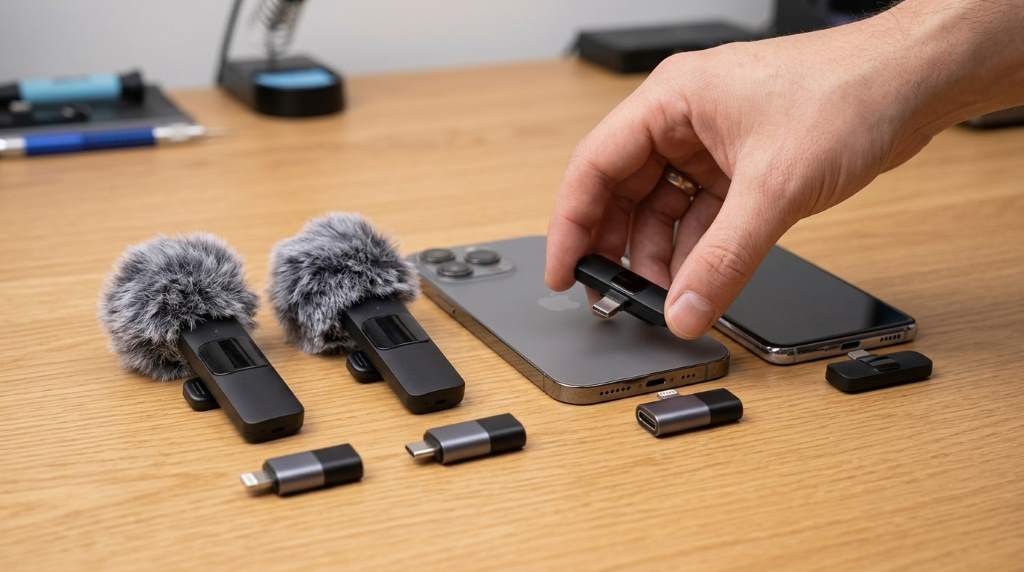
Connecting a Mini Mic Pro is usually simple. Plug the receiver into your phone, power on the microphone, and let both devices pair automatically within seconds.
Most connection issues come from incorrect adapter use, low battery power, or disabled recording permissions. Once configured correctly, the microphone works smoothly for video recording, streaming, interviews, and online meetings.
Wireless microphone adoption continues growing as mobile content creation expands. Recent industry reports show that short form video and mobile recording now dominate a large share of online content production. As a result, devices like the Mini mic pro for iPhone Android have become popular among creators, educators, business owners, and remote workers.
This guide explains the complete setup process. Additionally, it covers troubleshooting steps, audio optimization techniques, compatibility details, and practical usage tips that many competing guides often overlook.
What Is a Mini Mic Pro?
A Mini Mic Pro is a compact wireless microphone system designed for smartphones and tablets. It typically includes one or two transmitters and a wireless receiver.
The transmitter captures your voice while the receiver sends audio directly into your device. Therefore, you can record clearer sound than most built in phone microphones provide.
What Comes Inside the Package?
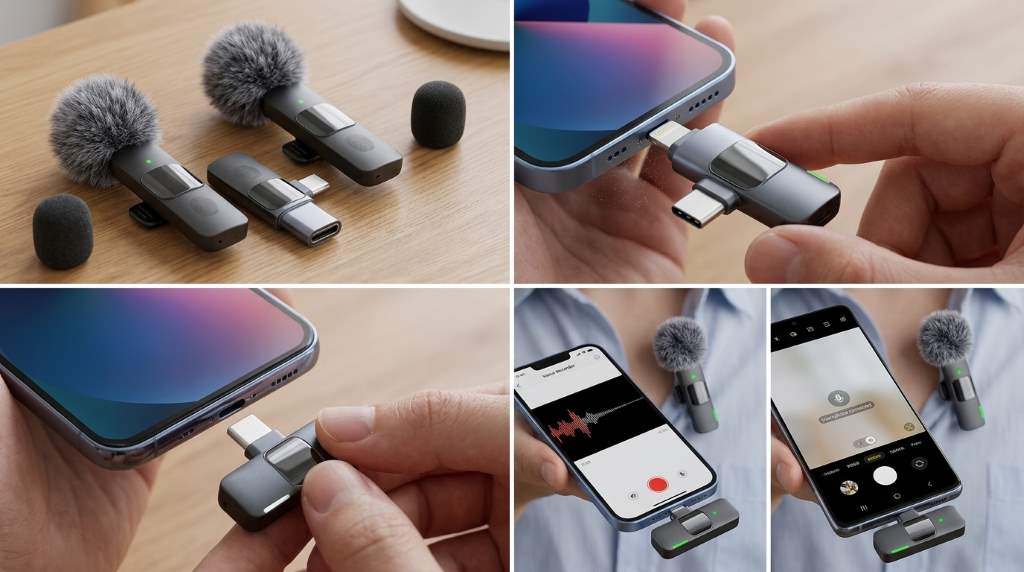
Package contents vary slightly by manufacturer. However, most Mini Mic Pro kits include the same core components.
- Wireless microphone transmitter
- Lightning or USB C receiver
- Charging cable
- Charging case on some models
- User manual
- Wind protection cover
Before starting setup, confirm that every component is fully charged. This simple step prevents many connection failures.
Check Device Compatibility First
Compatibility determines whether the microphone connects immediately. Consequently, identifying your device port is important before setup.
| Device Type | Typical Connection |
|---|---|
| Newer iPhone Models | USB C Receiver |
| Older iPhone Models | Lightning Receiver |
| Android Phones | USB C Receiver |
| Android Tablets | USB C Receiver |
If your device uses a different port, an approved adapter may be required. However, low quality adapters often create audio recognition problems.
How to Connect a Mini Mic Pro to an iPhone
Step 1: Charge the Components
Charge both the receiver and microphone transmitter completely. Afterwards, verify that the indicator lights display normal battery status.
Step 2: Insert the Receiver
Connect the Lightning or USB C receiver to your iPhone. The phone should recognize the accessory automatically.
Step 3: Turn On the Microphone
Press the power button on the transmitter. Within a few seconds, the pairing indicator usually becomes stable.
Step 4: Open a Recording App
Launch the Camera app, Voice Memos app, or another recording application. Then record a short audio sample.
Step 5: Verify Audio Input
Play the test recording immediately. If your voice sounds clear and close, the microphone is connected correctly.
How to Connect a Mini Mic Pro to an Android Phone
Step 1: Confirm USB C Support
Most modern Android devices support external microphones. Nevertheless, some older models have limited compatibility.
Step 2: Connect the Receiver
Insert the USB C receiver into the phone. Wait a few seconds for device recognition.
Step 3: Power On the Transmitter
Turn on the microphone and watch the indicator light. A stable light generally means successful pairing.
Step 4: Grant Permissions
Many Android apps require microphone access permission. Therefore, approve all requested audio permissions.
Step 5: Perform a Recording Test
Create a short video or voice recording. Afterwards, review the file to confirm audio quality.
How Automatic Pairing Works
Most Mini Mic Pro systems arrive pre paired from the factory. Because of this, manual pairing is rarely necessary.
Once powered on, the transmitter searches for its receiver automatically. Then both devices establish a wireless audio connection.
If pairing fails, restarting both units often resolves the problem. Otherwise, follow the reset instructions provided by the manufacturer.
Common Connection Problems and Fixes
Phone Does Not Detect the Receiver
Remove the receiver and reconnect it firmly. Also inspect the charging port for dust or debris.
If detection still fails, restart the phone completely. Afterwards, test the microphone again.
No Sound in Recordings
Check microphone permissions within device settings. Additionally, confirm the transmitter battery is not depleted.
Some recording apps require manual audio source selection. Therefore, review app settings carefully.
Audio Cuts In and Out
Wireless signal interference often causes this issue. Move closer to the receiver and avoid large obstacles.
Furthermore, keep the microphone away from strong wireless devices when recording. This improves connection stability.
Low Recording Volume
Position the microphone closer to your mouth. Ideally, keep it six to eight inches away.
Many recording applications also include input gain controls. Increasing gain slightly may improve volume levels.
Best Placement for Clear Audio
Microphone positioning affects recording quality significantly. Even an excellent microphone can sound poor when placed incorrectly.
- Attach the microphone near the collar area
- Avoid covering the microphone opening
- Use a windscreen outdoors
- Keep clothing from rubbing against the microphone
- Maintain consistent speaking distance
These small adjustments often create noticeable audio improvements. As a result, recordings sound more professional.
Using Mini Mic Pro for Different Recording Scenarios
Video Content Creation
Creators often use Mini Mic Pro microphones for social media videos. Clear voice recording helps viewers stay engaged longer.
Interviews
Dual transmitter versions work especially well for interviews. Each speaker receives dedicated microphone coverage.
Online Meetings
Remote workers frequently use wireless microphones during meetings. Consequently, speech becomes easier for participants to understand.
Educational Content
Teachers and trainers benefit from improved voice clarity. Better audio helps maintain audience attention throughout lessons.
Tips for Better Sound Quality
Excellent audio requires more than a successful connection. Therefore, optimizing recording conditions is equally important.
- Record in quieter environments
- Reduce background noise sources
- Monitor battery levels regularly
- Test audio before important recordings
- Use a windscreen outdoors
- Keep firmware updated when available
Following these practices consistently improves recording results. Moreover, they reduce editing time later.
Maintenance and Care
Proper maintenance extends microphone lifespan. It also helps maintain reliable performance over time.
Store the microphone in its charging case whenever possible. Additionally, keep connectors clean and dry.
Avoid extreme temperatures during storage. Likewise, protect the microphone from accidental drops.
When You Should Reset the Microphone
Resetting helps resolve persistent pairing problems. However, it should not be your first troubleshooting step.
Consider a reset when connection failures continue after charging, restarting, and reconnecting devices. Afterwards, perform the pairing process again.
Final Thoughts
Learning how to connect a Mini Mic Pro for iPhone Android is straightforward when you follow the correct steps. Most users can complete setup in just a few minutes.
Charge the devices, connect the receiver, power on the transmitter, and test your audio. Start recording today and enjoy clearer, more professional sound from your mobile device.
FAQs
Does Mini Mic Pro work without Bluetooth?
Yes, most models use a dedicated wireless receiver rather than standard Bluetooth pairing.
Can I use Mini Mic Pro with the iPhone Camera app?
Yes, the microphone generally works directly with the Camera app.
Why is my Mini Mic Pro not connecting?
Low battery power, permission issues, or an unsupported adapter are common causes.
Can I use Mini Mic Pro while charging my phone?
Some models support pass through charging, but compatibility varies by design.
How far can Mini Mic Pro transmit audio?
Most models provide reliable transmission across typical indoor recording distances.


